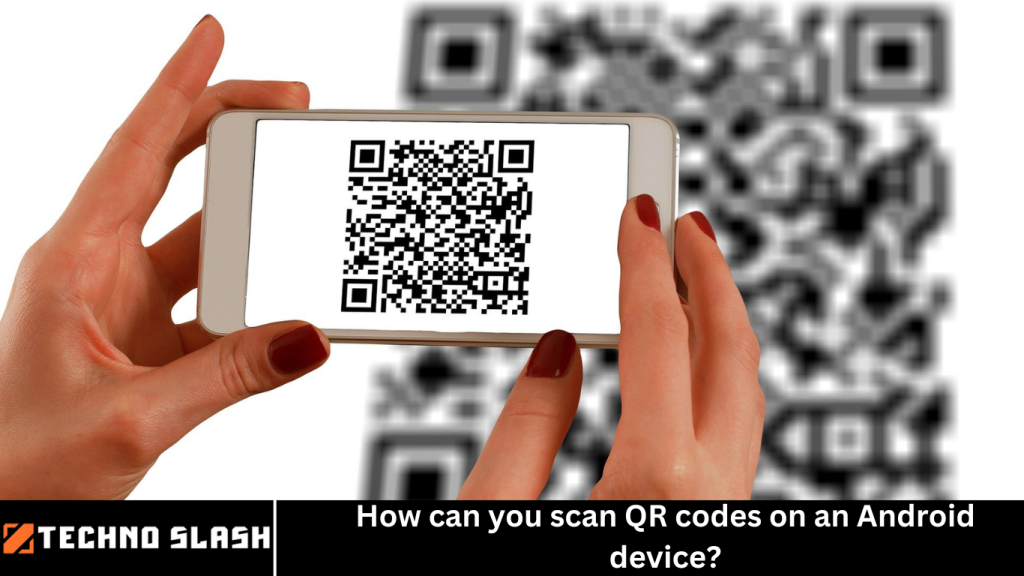
QR codes have become a popular and convenient way for people to share information, from URLs and contact information to Wi-Fi credentials and payment details. Whether you’re scanning a QR code on a product, advertisement, or website, it’s important to know how to scan them efficiently and securely.
If you’re an Android user, you’re in luck! Your device is likely equipped with the necessary features to scan QR codes easily. In this article, we’ll walk you through several methods to scan QR codes on Android, explore some popular apps for QR scanning, and discuss the safety considerations you should keep in mind.
More Read: Harness Visual Intelligence with iPhone
Why Should You Scan QR Codes?
QR codes can serve several purposes, and their usage has expanded beyond just marketing materials. Some common uses of QR codes include:
- Accessing Websites: QR codes often link directly to websites, saving you time typing in URLs.
- Making Payments: Many apps and services, such as PayPal and Google Pay, use QR codes for secure transactions.
- Storing Information: QR codes are used to share Wi-Fi passwords, business cards, and other details quickly.
- Event Ticketing: QR codes on event tickets are scanned for entry to venues or events.
- Advertising and Promotions: Companies use QR codes on promotional materials to drive traffic to their websites or special offers.
How to Scan QR Codes on Android Using Built-in Features
The great news is that most Android smartphones come with built-in tools for scanning QR codes. You don’t need to download any third-party apps, though there are many available if you’d like more advanced features.
Using Google Lens
Google Lens is an app integrated into many Android devices and is an excellent tool for scanning QR codes. It’s an intelligent visual search tool that allows you to identify objects, landmarks, translate text, and more, including QR codes.
Steps to Scan QR Codes Using Google Lens:
- Open the Google Lens app. If it’s not installed, you can download it from the Google Play Store.
- Point your phone’s camera at the QR code.
- Google Lens will automatically detect the QR code and display the information or action associated with it. If it’s a URL, you will be given the option to open the link.
Using the Camera App
Most modern Android phones come with the capability to scan QR codes directly through the default camera app, without the need for a separate QR scanner.
Steps to Scan QR Codes Using the Camera:
- Open the Camera app on your Android phone.
- Point the camera at the QR code. Ensure that the QR code is well-lit and within the camera’s frame.
- The camera will automatically recognize the QR code and display a notification or banner at the top of the screen. This will typically be a link or action you can take.
- Tap the notification to open the QR code’s content (e.g., a website URL, Wi-Fi credentials, or contact info).
If your device does not support QR scanning through the Camera app, you may need to enable the feature through your camera settings or update your phone’s software.
Using QR Code Scanning Apps
While Android devices typically come with built-in tools for scanning QR codes, some users prefer to use third-party apps that may offer additional features or customization options.
QR Code Reader
QR Code Reader is a popular app that lets you scan both QR codes and barcodes. It is simple to use, and it automatically detects the QR code in front of your camera.
Features of QR Code Reader:
- Supports scanning QR codes and barcodes.
- Keeps a history of scanned codes.
- No need for an internet connection to scan QR codes.
- Option to create your own QR codes.
NeoReader
NeoReader is another highly-rated app that allows you to scan QR codes and barcodes. It supports various formats, such as QR codes, DataMatrix, and EAN-13 barcodes.
Features of NeoReader:
- Scans different types of barcodes and QR codes.
- No ads or in-app purchases (premium version is available).
- Simple user interface.
- Allows users to scan QR codes from images stored on the device.
QR & Barcode Scanner
QR & Barcode Scanner is a fast and simple app to scan QR codes and barcodes. It’s free to download and use, with minimal ads.
Features of QR & Barcode Scanner:
- Instantly scans QR codes and barcodes.
- Keeps a history of scanned QR codes.
- Offers a flashlight feature for scanning in low light.
- Supports QR code generation.
While apps like these can provide added functionality, the built-in features on most Android devices are usually sufficient for general QR code scanning.
How to Scan QR Codes from Websites
If you find a QR code on a website, you might be wondering how to scan it on your Android phone. Fortunately, you can scan QR codes directly from the webpage without needing to open a different app.
Steps to Scan QR Codes from Websites:
- Open the browser on your Android device (e.g., Google Chrome, Firefox, or Edge).
- Navigate to the webpage that contains the QR code.
- If you have Google Lens installed, you can use it to scan QR codes directly from the webpage by tapping the Lens icon in the search bar or within the camera.
- Alternatively, take a screenshot of the webpage containing the QR code and then use a QR scanning app or Google Lens to scan the screenshot.
How to Scan QR Codes from Images
You might come across a QR code in an image, and scanning it from the screen is simple. Here’s how you can do it:
Steps to Scan QR Codes from Images:
- Open the Gallery or Photos app on your Android device and locate the image that contains the QR code.
- Tap the image to open it in full-screen mode.
- Use Google Lens to scan the QR code directly from the image. If your device supports it, Google Lens will automatically recognize and process the QR code.
Alternatively, you can upload the image to a QR code scanner app to extract the information.
How to Scan QR Codes in Android Notifications
In some cases, QR codes may appear as part of notifications from messaging apps, websites, or social media platforms.
Steps to Scan QR Codes from Notifications:
- If you receive a QR code notification, simply tap the notification to open the related content.
- If you can’t tap the notification directly, take a screenshot of the notification containing the QR code.
- Open the screenshot with Google Lens or a QR code scanning app to extract the information.
Tips for Scanning QR Codes Safely
While scanning QR codes is convenient, it’s important to do so safely. Here are some tips to keep in mind:
- Avoid Unknown Sources: Be cautious when scanning QR codes from unknown or suspicious sources, as they may lead to phishing websites or malware.
- Verify the Link: Always verify that the QR code links to a trustworthy website, especially if it involves payment or personal information.
- Use Trusted Apps: Stick to using trusted and reputable QR code scanning apps or the built-in tools provided by your Android device.
Troubleshooting Common QR Code Scanning Issues
Sometimes, scanning QR codes may not work as expected. Here are a few troubleshooting tips:
- Check the Lighting: Ensure that the QR code is well-lit. Low lighting can make it harder for the camera to read the code.
- Clean Your Camera Lens: A dirty lens can cause poor focus, making it difficult to scan the QR code.
- Hold the Camera Steady: Hold the camera steady and ensure the QR code is centered within the frame.
- Update Your Software: Make sure your Android device is up-to-date, as outdated software may affect the QR scanning functionality.
Frequently Asked Question
Do I need a special app to scan QR codes on Android?
No, most modern Android devices have built-in features like Google Lens or the default camera app that allow you to scan QR codes without needing a special app. However, if your device doesn’t support this functionality, or if you prefer more advanced features, you can download third-party QR code scanning apps like QR Code Reader or NeoReader.
How do I scan a QR code with my Android phone’s camera?
To scan a QR code with your Android phone’s camera:
- Open the Camera app.
- Point the camera at the QR code.
- The camera should automatically detect the QR code and show a notification or banner at the top of the screen.
- Tap the notification to access the information encoded in the QR code.
Can I scan QR codes from images on my Android phone?
Yes, you can scan QR codes from images stored on your Android phone. To do this, open the image in your gallery or photos app and use Google Lens or a QR code scanning app to detect and scan the QR code from the image.
What should I do if my Android device won’t scan QR codes?
If your Android device is having trouble scanning QR codes, try the following troubleshooting steps:
- Ensure the camera lens is clean.
- Make sure the QR code is well-lit and within focus.
- Hold your phone steady while scanning.
- Update your phone’s software to the latest version.
- Try using Google Lens or a third-party QR code scanner app.
Is scanning QR codes safe on Android?
Scanning QR codes can be safe as long as you take precautions. Avoid scanning QR codes from unknown or suspicious sources, as they could lead to phishing websites or malicious links. Always verify the information or URL that appears after scanning and be cautious with any personal data you share.
Can I use Google Lens to scan QR codes on Android?
Yes, Google Lens is a powerful tool built into most Android devices that can scan QR codes. Simply open the Google Lens app or use it through the camera app, point your phone at the QR code, and it will automatically detect and process the code.
What kind of information can be encoded in a QR code?
QR codes can store a variety of information, including:
- Website URLs
- Text messages or notes
- Contact information (business cards)
- Wi-Fi credentials
- Payment information
- Event details or tickets
Each QR code can be used for different purposes depending on what data it is programmed to store.
Conclusion
Scanning QR codes on your Android device is a straightforward process, whether you use the built-in features like Google Lens or Camera, or rely on third-party apps. QR codes can store a wide range of information, making them useful for everything from accessing websites to making payments. By following the simple steps outlined in this guide and keeping security tips in mind, you can make the most of this powerful tool. Whether you’re scanning QR codes for personal or professional use, your Android phone has everything you need to get started quickly.