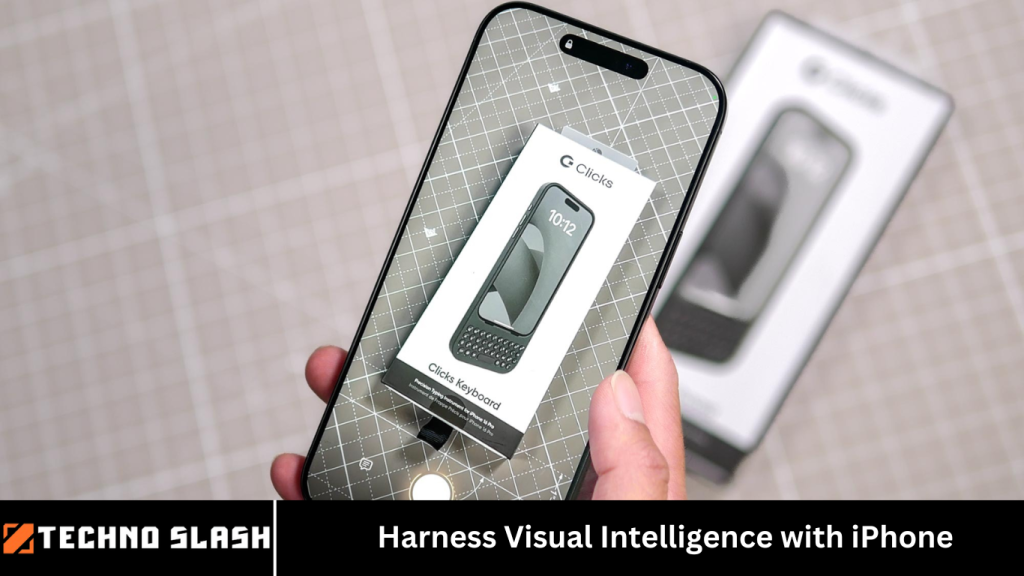
Apple’s latest innovation, Visual Intelligence, transforms your iPhone into a powerful tool for understanding and interacting with the world around you. By integrating advanced AI capabilities directly into the camera system, Visual Intelligence allows users to identify objects, translate text, and access information seamlessly.
This guide explores the features, usage, and benefits of Visual Intelligence on compatible iPhone models.
More Read: Microsoft AI Head Aims to Build Lasting Bonds Between Chatbots and Users
What is Visual Intelligence?
Visual Intelligence is an AI-powered feature introduced in iOS 18.2, designed to enhance the iPhone’s camera functionality by providing real-time information about objects and text captured through the lens. By leveraging on-device processing and Apple’s Private Cloud Compute, Visual Intelligence ensures user privacy while delivering swift and accurate results.
Key Features of Visual Intelligence
1. Object Recognition
Visual Intelligence can identify a wide range of objects, including landmarks, plants, animals, and everyday items. By simply pointing your camera at an object and activating the feature, your iPhone provides detailed information, enhancing your understanding of the environment.
2. Text Translation and Summarization
The feature allows users to translate text in real-time, making it invaluable for travelers and language learners. Additionally, Visual Intelligence can summarize lengthy texts, providing concise information quickly.
3. Business and Landmark Information
When directed at businesses or landmarks, Visual Intelligence retrieves relevant details such as reviews, operating hours, and historical context, enriching your exploration experience.
Compatible iPhone Models
Visual Intelligence is available on the following iPhone models:
- iPhone 16 and 16 Pro
- iPhone 15 Pro and 15 Pro Max
These models support the feature through the new Camera Control button, Action button, or via the Control Center.
How to Use Visual Intelligence
Activating Visual Intelligence
- Using the Camera Control Button: On iPhone 16 models, press and hold the Camera Control button to activate Visual Intelligence.
- Via the Action Button or Control Center: On compatible models, customize the Action button or access the feature through the Control Center for quick activation.Practical Applications
- Identifying Plants and Animals: Enhance your nature walks by learning about flora and fauna in real-time.
- Translating Menus and Signs: Navigate foreign environments with ease by translating text instantly.
- Exploring Landmarks: Gain insights into historical sites and attractions during your travels.
Privacy and Security
Apple emphasizes user privacy with Visual Intelligence by ensuring that all processing occurs on-device or through Apple’s Private Cloud Compute. Images are not stored or accessible by Apple, maintaining user confidentiality.
Integration with Other Features
Visual Intelligence complements other AI-driven features in iOS 18.2, such as:
- Genmoji: Create personalized emojis using AI-generated images.
- Image Playground: Generate creative images for various applications.
- Enhanced Siri: Benefit from improved Siri capabilities, including better understanding and integration with ChatGPT for complex queries.
Future Prospects
Visual Intelligence is a stepping stone toward more immersive technologies, such as augmented reality (AR) glasses. Apple’s focus on refining this feature indicates a commitment to expanding AI integration in future devices.
Frequently Asked Question
What is Visual Intelligence on iPhone?
Visual Intelligence is an AI-powered feature on supported iPhone models that allows users to identify objects, translate text, retrieve business information, and more using the camera. It leverages on-device intelligence and Apple’s Private Cloud Compute to deliver fast and private results.
Which iPhone models support Visual Intelligence?
Visual Intelligence is available on the following models:
- iPhone 16, iPhone 16 Pro
- iPhone 15 Pro, iPhone 15 Pro Max
- These models have the necessary hardware and software support to run the feature effectively.
How do I activate Visual Intelligence on my iPhone?
You can activate Visual Intelligence in three ways:
- Press and hold the Camera Control (if available)
- Customize the Action Button (on supported models)
- Open Control Center and tap the feature icon
What can I do with Visual Intelligence?
With Visual Intelligence, you can:
- Identify plants, animals, and landmarks
- Translate and summarize text in real time
- Get information about nearby restaurants, shops, and businesses
- Read text aloud or convert it to voice
Can I customize how I access Visual Intelligence?
Absolutely. On iPhone 15 Pro and newer, you can assign Visual Intelligence to the Action Button or place it in the Control Center for quick access. This flexibility ensures it fits seamlessly into your daily workflow.
Is Visual Intelligence private and secure?
Yes. Apple prioritizes user privacy. Most processing happens directly on the device, and any cloud-based computation is done using Apple’s Private Cloud Compute, which ensures data is not stored or accessible by Apple.
Does Visual Intelligence require an internet connection?
Some features, like basic object recognition or translation, may work offline using on-device processing. However, more advanced queries (like business lookups or summaries) may require an internet connection to fetch updated information.
Conclusion
Visual Intelligence significantly enhances the iPhone’s capabilities, offering users a smarter way to interact with their surroundings. By providing real-time information, translation, and identification features, it serves as a valuable tool for everyday use and exploration. As Apple continues to innovate, Visual Intelligence sets the stage for more advanced AI applications in the future.